

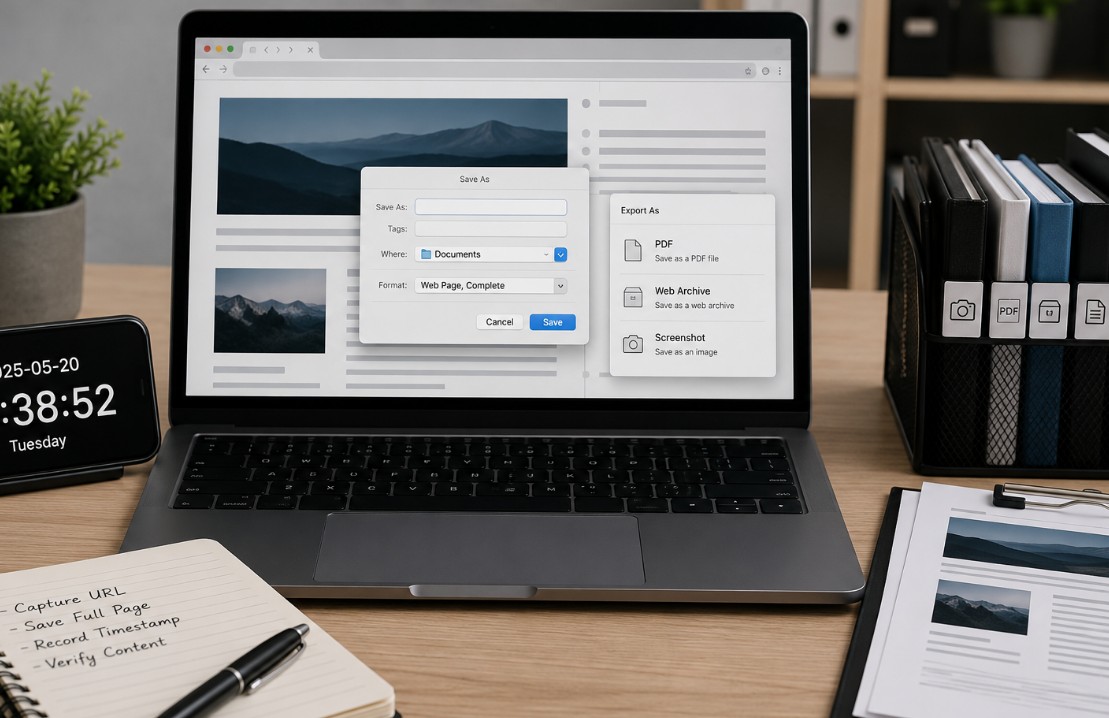
A webpage can change quietly, and usually at the worst possible moment. A pricing page disappears. A refund policy gets rewritten. A public notice is updated after you already acted on it.
If you work in marketing, sales, legal, customer support, procurement, or compliance, saving proof of a webpage is basic digital housekeeping. I do it before I file a complaint, approve a vendor claim, reference public information, or rely on online terms.
The goal is simple: keep a clear copy of what you saw, when you saw it, and where it appeared.
Why One Screenshot Is Usually Not Enough
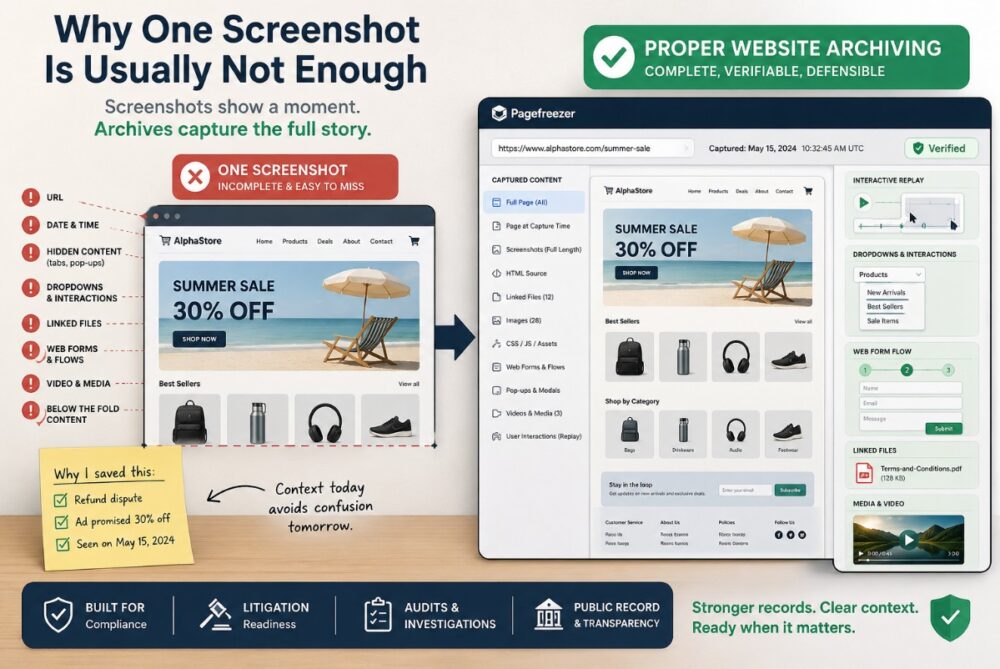
A screenshot is useful, but it is rarely the full answer. It may show the visible part of a page, but it can miss the URL, date, hidden content, pop-ups, dropdowns, linked files, and anything below the fold. That matters if you need proof for a refund dispute, an audit trail, a contract conversation, or an internal decision.
My rule is simple: screenshots are good for quick context, but they should sit beside stronger records. Capture the page in at least two formats, then keep a short note explaining why you saved it. That note often saves future-you from guessing.
For business, compliance, litigation readiness, or public record work, simple screenshots can become a weak link. This is where proper website archiving makes sense. Pagefreezer says its tool captures website updates, dynamic content, images, web form flows, videos, and interactive replay, with records designed for audits and legal needs. That is more complete than saving a few manual files and hoping everyone understands them later.
Start With A PDF Capture
The fastest serious first step is saving the webpage as a PDF. It is easy to open, share, store, and review later. Recommendation is to use the browser print function, choosing “Save as PDF,” turning on headers and footers when available, and checking that the URL and date appear on the saved document.
Do this before you close the tab:
- Open the exact page you need, not just the homepage.
- Press Ctrl + P on Windows or Command + P on Mac.
- Choose Save as PDF.
- Turn on headers and footers if available.
- Open the PDF and check whether the important content saved correctly.
Save The HTML Version Too
A PDF is neat, but an HTML save can preserve more of the page structure. Chrome users can save a page through the browser menu by choosing More tools, then Save page as. Chrome can save HTML only, a single file, or a complete page with supporting assets, depending on the format selected.
| Method | Best for | Watch out for |
| Easy sharing | May cut off content | |
| HTML complete | Offline copy | Files can separate |
| Screenshot | Fast proof | Misses structure |
| Web archive | Formal record | Some pages block crawlers |
After saving HTML, open the file offline. If images, tables, or styles are missing, you still have useful text, but not a faithful copy.
Use The Wayback Machine For A Public Capture
The Internet Archive’s Save Page Now tool is worth using when the page is public and you want an outside timestamped copy. The Internet Archive Help Center says you can enter a URL into Save Page Now, receive a permanent URL, and save one page at a time, although it does not crawl an entire site or save outlinks. Its 2025 blog post also says users can visit the Save Page Now page, enter a URL, and click Save Page.
I like this step because it adds outside context. It is not perfect, and some pages cannot be archived, but it is quick. Save the archive link inside your proof folder, right beside your PDF and screenshots.
Record The Details Before You Forget Them
Here is the part people skip, and yes, I have skipped it too. A saved file without context can become annoying later. Was it the checkout page? The policy page? The version before or after the change? Why did we save it? Nobody remembers clearly after three months, especially when five people were copied into one email thread.
Keep a plain text note with the full URL, capture date, time zone, browser used, reason for capture, and file names created. Use boring file names too, such as vendor-refund-policy-2026-07-07.pdf. Boring is searchable, and searchable is kind.
Check The Capture Before You Trust It
Please do not save a file and assume it worked. Open everything. Scroll through the PDF. Test the HTML file. Compare the screenshot with the live page while it is still open. If the page has accordions, product filters, video, pricing calculators, forms, or dropdown menus, click them before saving or capture each important state separately. Interactive content is where casual proof often fails.
Important note: a PDF created through print may not capture the entire webpage, and the BCSTH guide specifically advises double checking that the PDF saved the information properly.
If the key sentence is missing from your PDF, the PDF is not proof of that sentence.
Keep The Proof Folder Easy To Review
Think about the person who may open this folder later. It might be your manager, a lawyer, an auditor, a client, or you after a long week. Do not make them decode mystery files called screenshot-final-final2.png. Create one folder per issue and put the files in a simple order: PDF first, screenshot second, HTML copy third, archive link note fourth.
For important business records, store a copy somewhere controlled, not only on your laptop. Use company-approved storage, keep access limited, and avoid editing the original files. If the matter could become legal, ask the right professional before deleting anything.
FAQs
1. Can I use a screenshot as legal proof of a webpage?
A screenshot can support your case, but it may not be enough on its own. Use it with a PDF, HTML save, timestamped archive, and a note showing the URL, date, time, and reason for capture.
2. Should I save a webpage before accepting online terms?
Yes, especially for business accounts, subscriptions, refunds, cancellations, warranties, and vendor agreements. Save the exact terms page before you click accept, then store it with your contract or purchase record.
3. What if a webpage requires a login?
Public archiving tools usually cannot capture private account pages behind a login. For logged-in pages, save a PDF, screenshots, and notes. If it is business-critical, ask your legal, IT, or compliance team about approved evidence capture tools.
At last
The best time to save proof is before anything feels urgent. Once a webpage is edited, removed, or blocked, your options shrink. Keep the process simple: PDF, screenshot, HTML copy, archive link, and a short note.
That is enough for many everyday business situations. For regulated, legal, or high-value matters, use a proper archiving system and follow your organization’s rules.
I know this sounds like extra admin, but it is the kind of admin that protects decisions, budgets, teams, and reputations.